# react-native-location
Native GPS location support for React Native.
## Installation
Three installation methods are provided here for compatibility and ease of use. All of them require installing the package using NPM. However, you can install the iOS specific bits using one of three methods: RNPM, React-Native Link (only v0.28), or manual linking in XCode.
First step for all three is NPM Install to your project:
```
npm install --save react-native-location
```
#### RNPM Installation
For RNPM, first install RNPM globally and then simply run it with the 'link' command at the root of your project:
```
npm install rnpm -g
rnpm link
```
#### React-Native Link Installation
Since version 0.28 of React Native, rnpm has been merged into the codebase. So, as long as you are using the latest version of the CLI, then you can simply run link:
```
react-native link
```
#### Manual Installation
Finally, you can do a manual installation with XCode. Drag `ios/RNLocation.xcodeproj` from the `node_modules/react-native-location` folder into your XCode project. Click on the your project in XCode, goto Build Phases then Link Binary With Libraries and add `libRNLocation.a` and `CoreLocation.framework`.
NOTE: Make sure you don't have the `RNLocation` project open separately in XCode otherwise it won't work.
## Example application
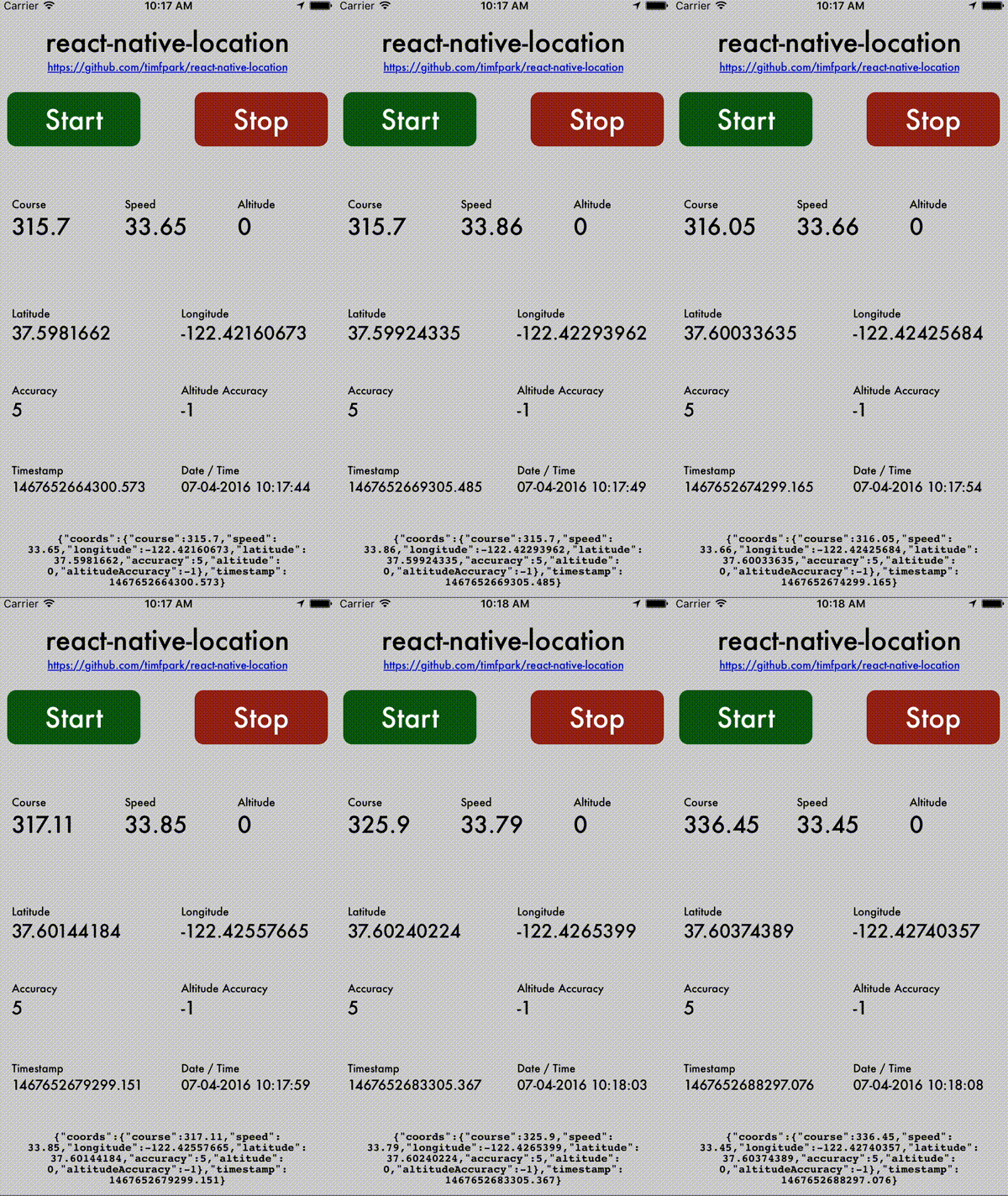
In the [example](./example) folder is a React Native sample app which simply allows you to test out whether the library is working for you. You can also use this as a sample implementation to start from. The app requests always on permissions, takes reading every 5 distance and starts immediately. To utilize in the simulator, look on the `Debug -> Location` menu for optional sample trips that will show you updating location such as City Bicicle Ride, City Run and Freeway Drive.
## PList Permissions
In order to use permissions, your enclosing app needs to grant permissions in the `info.plist` file. React Native automatically sets up the PList config key for `NSLocationWhenInUseUsageDescription`. However, to use `NSLocationAlwaysUsageDescription` you will need to add that in your PList file. The string message in the key will show in the Alert box when your app requests permissions. To start, you can simply add these to your file and edit them (or remove them) later. Remember to only request the permissions you NEED within your app. See the detail on Background Mode later on.
```xml
NSLocationWhenInUseUsageDescription
This is the plist item for NSLocationWhenInUseUsageDescription
NSLocationAlwaysUsageDescription
This is the plist item for NSLocationAlwaysUsageDescription
```
## Location Usage
```javascript
var React = require('react-native');
var { DeviceEventEmitter } = React;
var { RNLocation: Location } = require('NativeModules');
Location.requestAlwaysAuthorization();
Location.startUpdatingLocation();
Location.setDistanceFilter(5.0);
var subscription = DeviceEventEmitter.addListener(
'locationUpdated',
(location) => {
/* Example location returned
{
coords: {
speed: -1,
longitude: -0.1337,
latitude: 51.50998,
accuracy: 5,
heading: -1,
altitude: 0,
altitudeAccuracy: -1
},
timestamp: 1446007304457.029
}
*/
}
);
```
## Heading Usage
```
var React = require('react-native');
var { DeviceEventEmitter } = React;
var { RNLocation: Location } = require('NativeModules');
Location.requestAlwaysAuthorization();
Location.startUpdatingHeading();
DeviceEventEmitter.addListener(
'headingUpdated',
(data) => {
/* Example data returned
{
heading: 57.2839832
}
*/
}
);
```
It is recommended to set `NSWhenInUseUsageDescription` in your `Info.plist` file.
## Background mode
For background mode to work, a few things need to be configured:
1. In the Xcode project, go to Capabilities, switch on "Background Modes" and check "Location updates".
2. Using `requestAlwaysAuthorization` in place of `requestWhenInUseAuthorization`, like this:
```javascript
Location.requestAlwaysAuthorization();
```
3. Set `NSLocationAlwaysUsageDescription` in your `Info.plist` file.
4. For iOS9, set [`allowsBackgroundLocationUpdates`](https://developer.apple.com/reference/corelocation/cllocationmanager/1620568-allowsbackgroundlocationupdates) to true, like this:
```javascript
Location.setAllowsBackgroundLocationUpdates(true);
```
## Methods
To access the methods, you need import the `react-native-location` module. This is done through `var Location = require('react-native-location')`.
### Location.requestWhenInUseAuthorization
```javascript
Location.requestWhenInUseAuthorization();
```
This method should be called before anything else. It requests location updates while the application is open. If the application is in the background, you will not get location updates. Either this method or `Location.requestAlwaysAuthorization` (but not both) needs to be called to receive updates.
### Location.requestAlwaysAuthorization
```javascript
Location.requestAlwaysAuthorization();
```
This method should be called before anything else is called. It requests location updates while the application is open or in the background. Either this method or `Location.requestWhenInUseAuthorization` (but not both) needs to be called to receive updates.
### Location.getAuthorizationStatus
```javascript
Location.getAuthorizationStatus(function(authorization) {
// authorization is a string which is either "authorizedAlways",
// "authorizedWhenInUse", "denied", "notDetermined" or "restricted"
});
```
This methods gets the current authorization status. While this methods provides a callback, it is not executed asynchronously. The values `authorizedAlways` and `authorizedWhenInUse` correspond to the methods `requestWhenInUseAuthorization` and `requestAlwaysAuthorization` respectively.
### Location.setDesiredAccuracy
```javascript
Location.setDesiredAccuracy(distanceInMeters);
```
Set the desired accuracy of location updates in meters. Determines the method used to obtain location updates. Low values will trigger using GPS.
### Location.setDistanceFilter
```javascript
Location.setDistanceFilter(distanceInMeters);
```
Set the desired minimum distance between location updates in meters.
### Location.startMonitoringSignificantLocationChanges
```javascript
Location.startMonitoringSignificantLocationChanges();
```
### Location.startUpdatingLocation
```javascript
Location.startUpdatingLocation();
var subscription = DeviceEventEmitter.addListener(
'locationUpdated',
(location) => {
// do something with the location
}
);
```
Start location updates. Your application will be called back with location updates that meet any mininum distance requirements that you specify via the DeviceEventEmitter event 'locationUpdated'.
### Location.startUpdatingHeading
```javascript
Location.startUpdatingHeading();
var subscription = DeviceEventEmitter.addListener(
'headingUpdated',
(data) => {
// do something with the heading
}
);
```
Start heading updates. Your application will be called back with heading updates.
### Location.stopUpdatingLocation
```javascript
Location.stopUpdatingLocation();
```
Stop receiving location events.
### Location.stopUpdatingHeading
```javascript
Location.stopUpdatingHeading();
```
Stop receiving heading events.
### Location.stopMonitoringSignificantLocationChanges
```javascript
Location.stopMonitoringSignificantLocationChanges();
```
Stop receiving sigificant location change events.
## Events
To listen to events we need to call `DeviceEventEmitter.addListener` (`var {DeviceEventEmitter} = require('react-native')`) where the first parameter is the event we want to listen to and the second is a callback function that will be called once the event is triggered.
### locationUpdated
Received when a location update has been sensed by the system. The event delivers one parameter, location, that is an object with location, elevation, and accuracy data.
### headingUpdated
Received when the heading changes. The event delivers one parameter: an object with the current heading in degrees.
## License
MIT, for more information see `LICENSE`